English · 日本語 · 中文 · Español · Français · Deutsch · Português · 한국어 · हिन्दी · العربية
 Interpretab
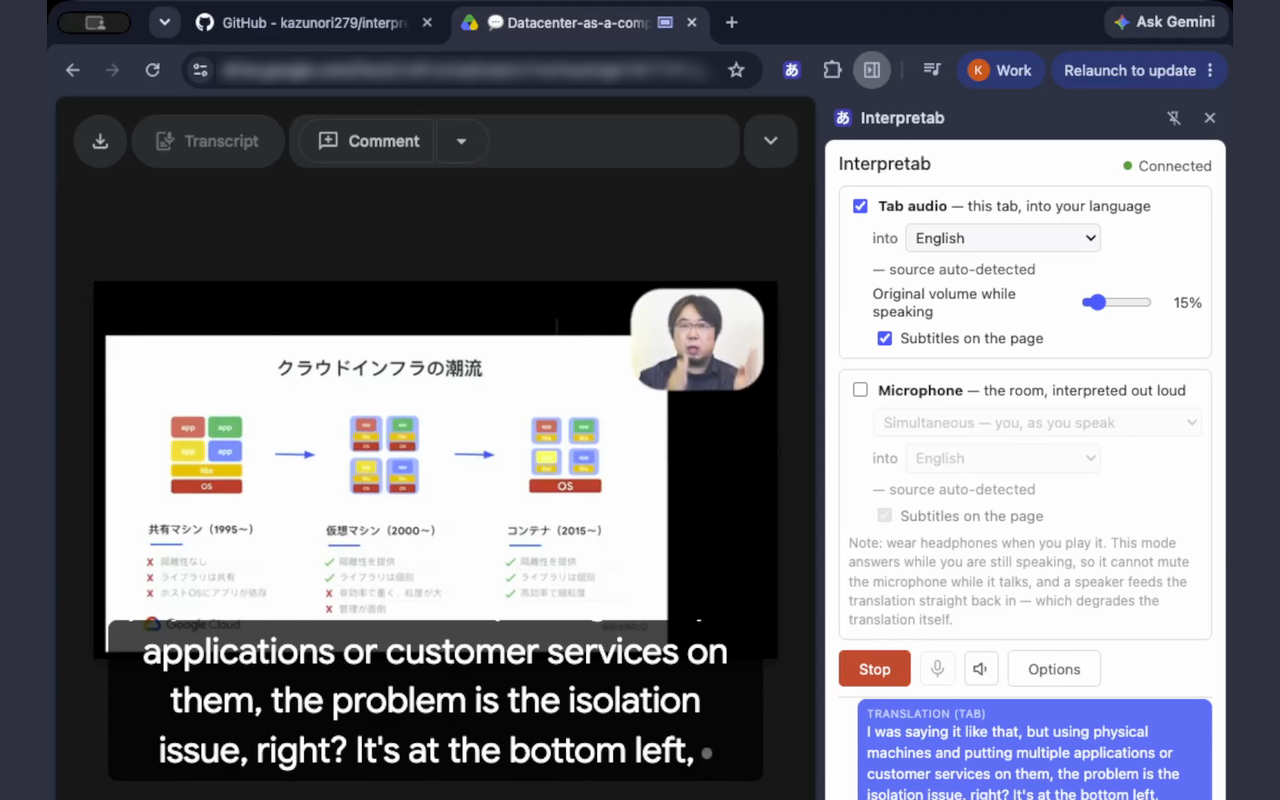
A Chrome extension that translates what your browser plays, and what you say, into 70+ languages in real time — spoken out loud and subtitled on the page.
💡 What you can use it for
Translating browser audio
 Watch a video, a live stream or a podcast playing in your browser in the language
you prefer.
Watch a video, a live stream or a podcast playing in your browser in the language
you prefer.
 Follow an online meeting with everything the other side says translated into your
language.
Follow an online meeting with everything the other side says translated into your
language.
Translating microphone audio
 Give a presentation or a live stream with your own voice subtitled on screen in
another language.
Give a presentation or a live stream with your own voice subtitled on screen in
another language.
 Meet in a room, or talk with friends, with everyone interpreted into the language
you pick.
Meet in a room, or talk with friends, with everyone interpreted into the language
you pick.
🔒 How Interpretab works, and privacy
Interpretab translates through Google’s Gemini Live API. Your audio, your subtitles and your key travel encrypted between your browser and Google, and reach nowhere else. There is no analytics or data-collection server either. Note that, being a Gemini Live API model, it can translate inaccurately, and it can produce speech that is not a translation at all.
💰 Free to try, about $2 an hour to keep running
Interpretab is an open-source tool. The Gemini Live API behind the translation is what costs money, and its free plan is enough to try it — after that, the Gemini Live API usage is billed to your own Google account.
Here are the Gemini Live API rates Google publishes as of August 2026:
| What is running | Audio in | Audio out | Per hour |
|---|---|---|---|
| Tab audio, or the microphone in Simultaneous mode | $0.0053/min | $0.0315/min | ≈ $2.20 |
| The microphone in Two-way conversation mode | $0.005/min | $0.018/min | ≈ $1.40 |
Those are hours of continuous audio, so less talking costs less. Turning tab audio and the microphone on together is two translations at once, so the price is the sum of the two rows.
🚀 Get started in 5 minutes
Interpretab installs like this:
Open Interpretab on the Chrome Web Store and press Add to Chrome.

Interpretab translates with Google's Gemini, and Gemini needs an API key of your own. Getting one is free: open Google AI Studio and sign in with a Google account.
The page lists the keys you have, which on a new account is none. Press Create API key.
A key needs a name, and a Google Cloud project to belong to. Type Interpretab as the name. Underneath it, an account that has never used the API has nothing to choose from: No Cloud Projects Available.
Open that list and pick Create project. The name it fills in for you is in your own language, and the field takes Latin letters only — clear it, type Interpretab, and press Create project.
The key dialog comes back with the new project in it. Press Create key and the key appears — press Copy key. It stays on the API keys page, so you can come back for it later.
Interpretab's Options page opens by itself the first time, and the Options button at the bottom of the side panel opens it again. Paste the key into Gemini API key. It is kept in this browser and goes to nobody but Google.
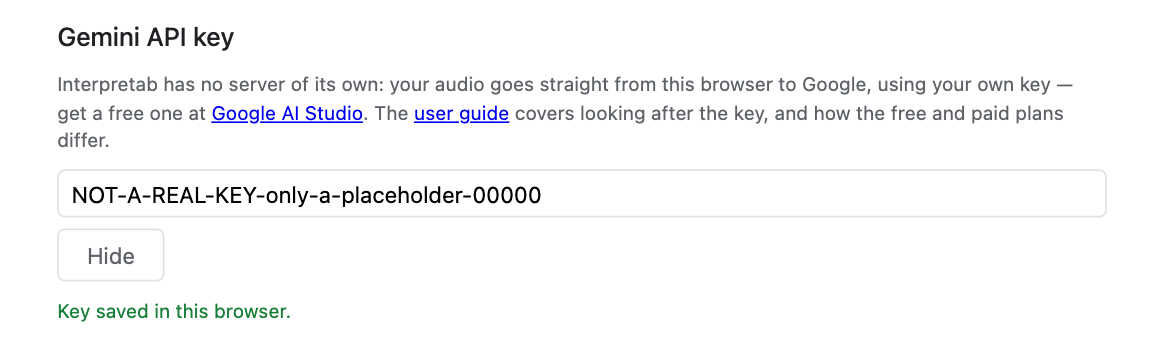
Open the page you want translated — a video with talking in it on youtube.com is the easiest first test. A new extension has no icon on the toolbar yet: click Chrome's puzzle-piece button, find Interpretab in the list, and press the pin beside it.

The icon is on the toolbar now. Click it, on the tab you want translated. That click is how you give permission to listen to the tab; skip it and you get an error.
Pick your language in the side panel and press Start. Play the video: the voice comes back in that language. If you hear no translation, pick a language other than the one the video is already in.
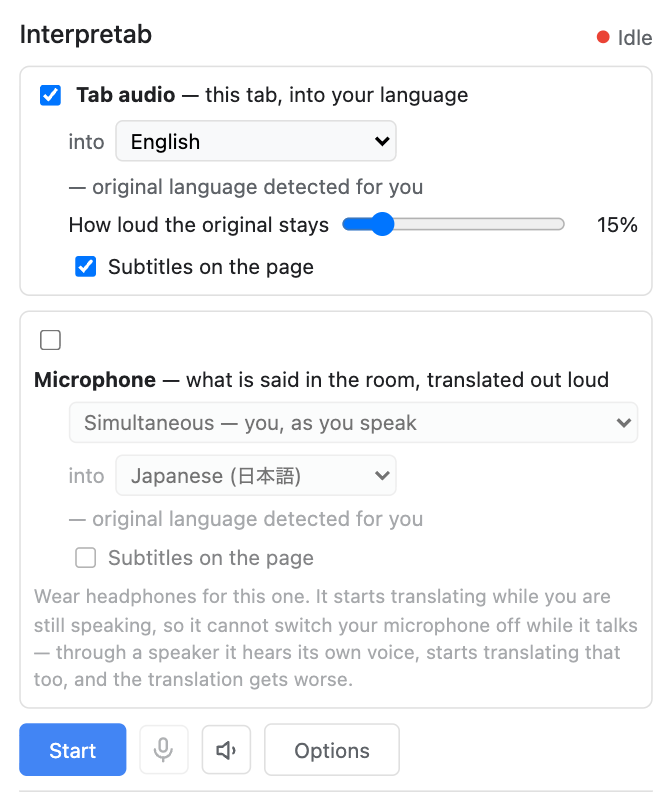
Chrome 116 or newer. Closing the side panel does not stop the translation — the Stop button is always one click on the toolbar icon away, from any tab.
Interpretab’s interface follows your browser’s language, in the ten languages at the top of this page.
🎛️ Choosing what to translate
Interpretab has two switches, Tab audio and Microphone. Either on its own, or both at once.
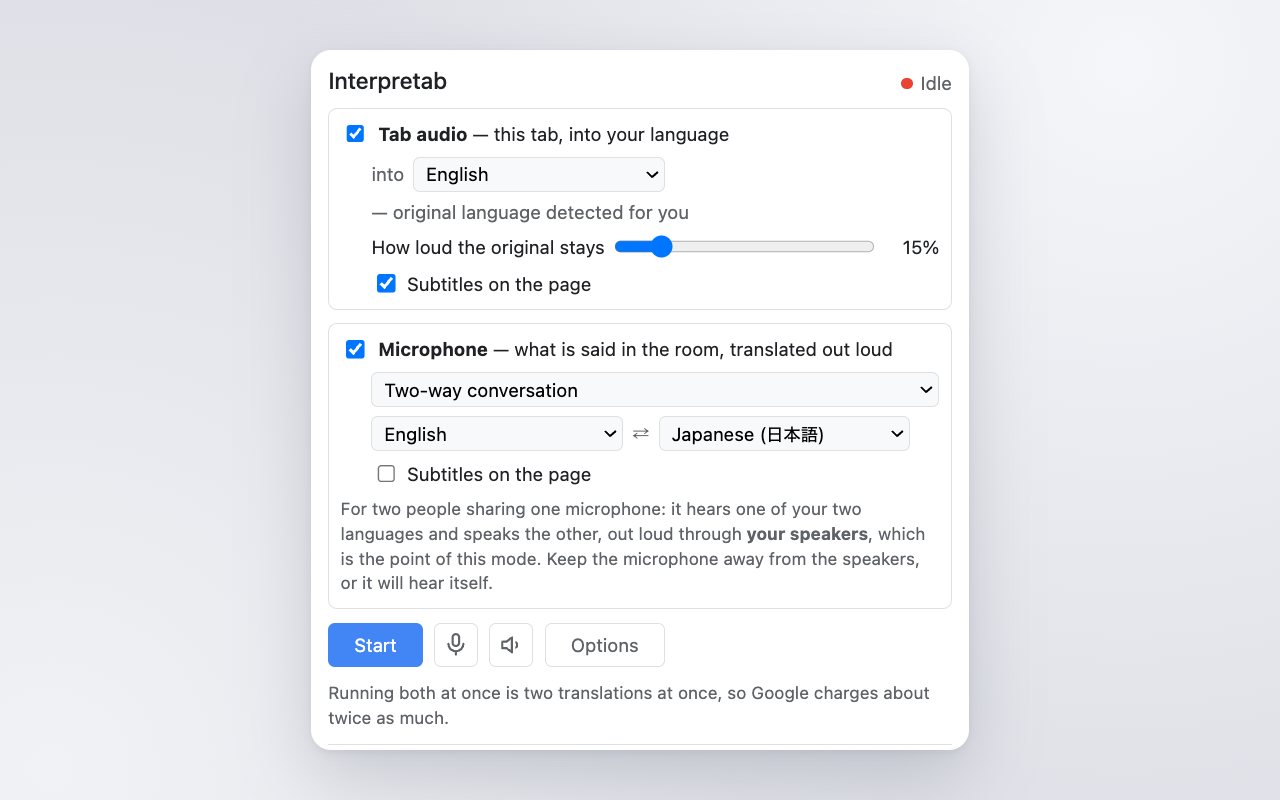
Tab audio translates whatever the current tab is playing into the language you pick, from a choice of 78.
Microphone translates what your computer’s microphone hears. It has two modes:
- Simultaneous translates speech into one language without waiting for the speaker to finish a sentence.
- Two-way conversation is for two people talking in two languages. Name both languages, put the laptop on the desk between you, and it waits for each speaker to finish and routes them to the other language — set English and Japanese, and it hears English, it says Japanese; it hears Japanese, it says English. No switching. 97 languages, and it is the only mode a glossary reaches.
The first time you switch the microphone on, Chrome has to grant it — once, to the extension as a whole. The panel says so and links to Options → Microphone access, where the “Allow the microphone” button is: Chrome will only show its permission prompt on a page of its own, never in the side panel.
Turning both on at once is two translations at once, so Google charges for both and the cost is the sum of the two.
💬 Subtitles and the spoken translation
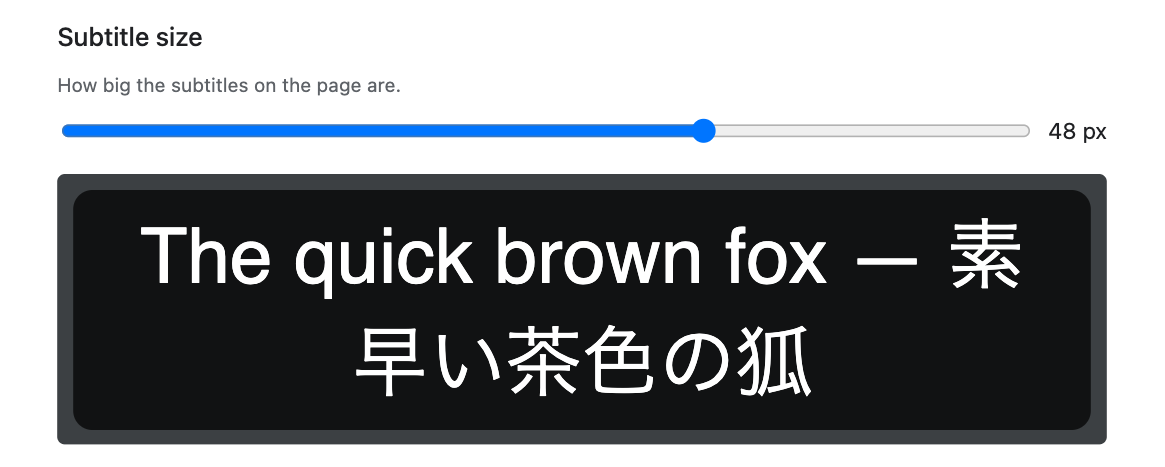
Subtitles appear bottom-centre of the page, three lines at a time, and they follow the video into fullscreen. When both tab audio and the microphone are on, the microphone’s line is marked with a blue edge. Options → Subtitle size sets how tall they are, 16–64 px, live while you watch.
The translated voice comes out of your computer’s audio output, and a mute button silences it at any time.
🔊 The tab audio translation’s voice
The voice translated from tab audio plays on your default audio device — whatever speakers or headphones the computer is already using. The tab’s own sound keeps playing underneath at a lower volume while the translation speaks, so a film’s music and effects are still there to hear.
🎤 The microphone translation’s voice
Options → Audio input/output picks which device Microphone listens on, and which one its translation is spoken out of. To stop translating for a moment, or when the room is noisy enough that voices you did not mean to translate are getting through, the microphone-off button turns the input off at any time.
📽️ Subtitling a slide presentation
Interpretab can put the translation of your own voice on the slides, in an online meeting, a live stream, or a room in person.
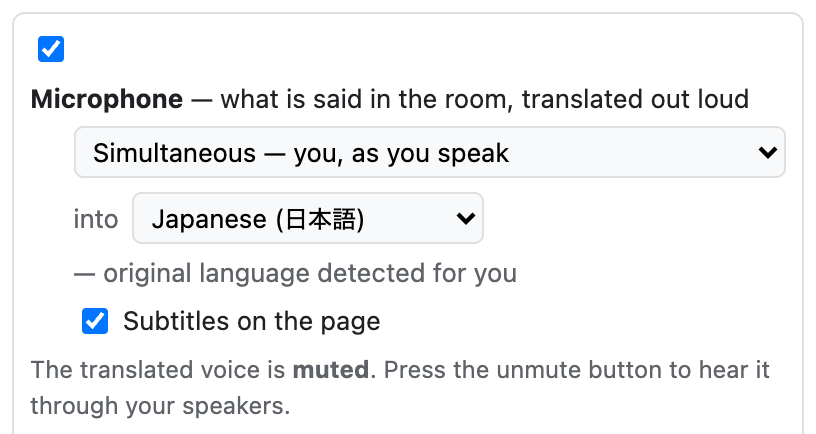
Open Interpretab's side panel on that tab. Turn Microphone on, leave it on Simultaneous, and set it to the language the room reads. If the sound of a video or a demo on a slide should be translated too, turn Tab audio on as well and set it to the same language.
Open Options → Subtitle size and set it to a size that suits the room.
Press Start, then close the side panel with the × at its top corner. Closing it does not stop the translation.

👥 Using it in online meetings
Interpretab is also good at translating an online meeting, as long as the meeting runs in the browser: desktop apps and native clients are out of reach.
Hearing the other side is what this tool does out of the box. Open the meeting in a tab, turn tab audio on, pick your language and press Start. What they say arrives in your language, spoken and subtitled.
To show the other side your own voice subtitled, use the same method as the slide section above. With no deck to show, share any page (google.com will do) and put the microphone’s subtitles on it.
Dubbing your own voice in an online meeting
Those two are enough for most conversations. If you want your voice dubbed rather than only subtitled, the simplest answer is for the other side to install Interpretab too.
Interpretab also dubs your own voice, as an experiment. The setup is below; the translated voice takes about three seconds to reach them.
On Google Meet
On speakers the microphone hears the call coming back out of them, and the two directions start interpreting each other. Plug headphones or earphones into the computer before anything else.
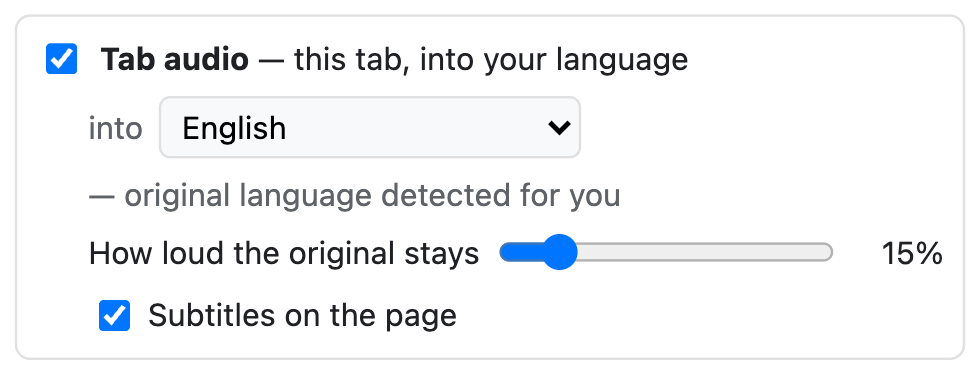
Open meet.google.com and open Interpretab's side panel on that tab. Turn Tab audio on and set it to your own language — that is the half which translates what the other side says.
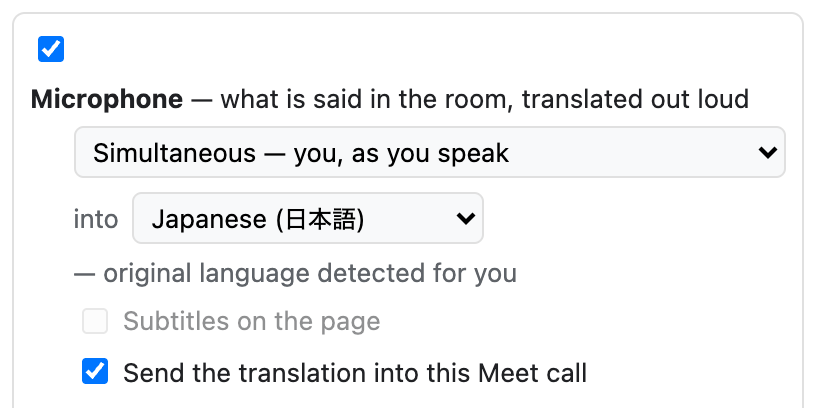
Turn Microphone on and set it to their language. On a Meet tab that card carries one extra switch, Send the translation into this Meet call — leave it on. While it is on, that voice goes into the call instead of out of this computer, and its subtitles here stay off.
Join the meeting in that same tab.
Press Start in the side panel. Nothing appears in Meet's own microphone list until you do — the translated microphone is put there by starting the run.
In Meet, open Settings → Audio and choose Interpretab (translated) as the microphone. Turn Studio Sound off while you are in there. On Bluetooth headphones, check that they are what Meet is playing through.
Say something. The far end hears the translation about three seconds later, with your own voice mixed in quietly underneath, so they can still hear you.
Anywhere else
The dubbed voice has to reach the meeting app as a microphone input, and that needs a virtual audio device.
- Install a virtual audio device: BlackHole on macOS, VB-Cable on Windows.
- Plug in headphones, as above.
- Options → Audio output → pick the virtual device. The voice translated from Microphone goes there; the one from Tab audio arrives in your headphones.
- In the meeting app’s microphone input setting, choose the virtual device.
- Turn on tab audio and the microphone, set both languages, and press Start.
🤖 The models behind the translation, and its quality
Tab audio and the microphone’s Simultaneous mode run on the Gemini Live API’s Live Translate model. The microphone’s Two-way conversation mode runs on the Gemini Live model, which cannot translate simultaneously — it waits for the speaker to finish — but translates better than Live Translate does, and is the only one that takes the glossary below.
Either way, the model can misfire, and subtitles can come out with the wrong content, or in the wrong language.
📖 Glossary
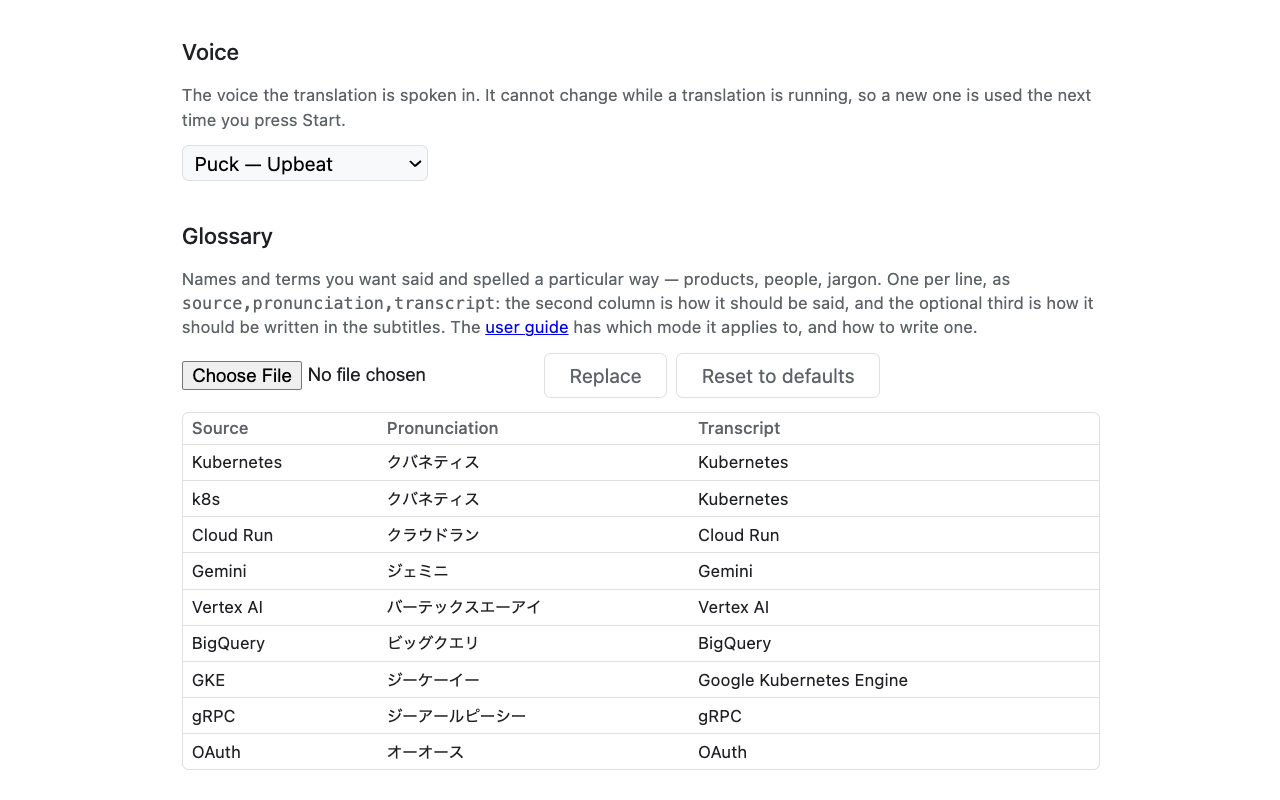
Product names, people’s names and jargon are what a general model most often gets wrong, in both pronunciation and spelling. The microphone’s Two-way conversation mode takes a glossary to cut those mistakes down; no other mode does. The model can still misfire here, and a registered pronunciation or spelling may not come through.
Options → Glossary takes a CSV like this:
source,pronunciation,transcript
Kubernetes,クバネティス,Kubernetes
Cloud Run,クラウドラン,Cloud Run
The first column is the term to match, the second is the pronunciation the model is told to use, and the third is what you want the subtitles to show.
⚠️ Things to know
- Use earphones or headphones for the microphone’s Simultaneous mode. That mode speaks over you, so the microphone picks its own translated voice back up — an echo loop — and translation quality drops badly.
- If you want external speakers with the microphone, use a microphone with a mute button. Speakers feed the translated voice back into the microphone — an echo loop — and the translation stops working properly. Unmute only while you are speaking.
- Tab audio and the microphone at the same time is two translations at once, and about twice the cost.
- Interpretab runs on one tab at a time. While it is running, the side panel on any other tab names the tab it is running on and offers only Stop. Stop it there and Start comes back.
- Chrome does not let extensions draw on its own pages or on PDFs, so subtitles cannot appear there. The spoken translation and the side-panel transcript still work.
- How well it translates depends on the language pair. English and Japanese are the pair this has been measured on, in hour-long runs; a more distant or less common pair can come out rougher, and there is no way to know in advance except to try it.
📊 More about using the Gemini Live API
The side panel keeps a meter of what the run has used so far, and starts again at zero each time you press Start. What it shows depends on Options → Gemini API plan, where you say whether your key is Free or Paid.
- Free (the default): 12 min so far, 18 min of total usage. Google charges nothing for this on the free plan.
- Paid: 12 min so far, ~$0.31 of Gemini usage this run — an estimate, not your actual bill.
Set the plan when you paste the key. A key is paid once the Google account it belongs to has a payment method on it, and Google does not tell Interpretab which it is — hence the question. Your Google account is the only place your actual bill exists.
💳 Choosing between the free plan and a paid one
What a Gemini API key costs, how hard it is limited, and what Google does with what you send through it all depend on which plan it is on. Google’s own documentation calls the paid one Tier 1, which is the same thing Interpretab’s Options page calls Paid. The qualifications Google publishes are:
| Plan | How you qualify | Cost and limits | What Google does with your data | Where it fits Interpretab |
|---|---|---|---|---|
| Free | No payment method needed | Free of charge, but long or heavy use runs into the limits and errors out | Used to improve Google’s products, and subject to human review | Trying it out |
| Paid (Google’s Tier 1) | Add a payment method to the Google account | Pay as you go, up to $10 per 10 minutes and $250 a month | Not used to improve products; logged briefly for abuse detection only | Where to be if you use it regularly. Enough for almost any use |
Start on the free plan, and add a payment method once you keep using it. On the paid plan nothing you send is used to improve Google’s products, and the ceilings are roomy for a tool like this one: about 25 Interpretab runs going at the same time, and around 110 hours a month. Google documents how to set the billing up.
🔑 Sharing one Gemini API key between machines and people
Interpretab keeps the key on the machine, in chrome.storage.local. Chrome’s profile sync does not
carry it, so using Interpretab on several computers means pasting the key into each of them.
Using one key on your own several machines is fine.
Handing the key to someone else is not, under Google’s API Terms of Service.
🛡️ Things to know about your Gemini API key
- Rate limits are per project, not per key. Google’s documentation says so in as many words. The paid plan’s $10 per 10 minutes is about 25 Interpretab runs at once, and anything past that errors out.
- A key is a password. If it gets out, Google’s guidance applies: “others can consume your project’s quota, incur unexpected billing charges, and access private resources.” When you part with a machine, or think a key may have leaked, delete the old key in AI Studio and make a new one.
- For a team, one key per person. Give each member their own project under the same Google Cloud billing account and the payment stays in one place while the keys and the rate limits do not.
- For users in the EEA, Switzerland or the UK, the Gemini API Additional Terms require a paid plan.
- If a run will not start, the message says which problem it is. Interpretab asks Google about the key before it opens anything, so a rejected key, a key that has used up what Google allows for now, and a key that is not allowed to use the Gemini API are named separately rather than guessed at. Running out is the usual one on the free plan: check what is left in AI Studio and wait for the limit to reset, or add a payment method. If the message says the key itself was accepted, the problem is Gemini or your network, not the key. A run can also stop partway for the same reason. Interpretab ends it and says the same thing rather than reconnecting: a limit that is spent still lets the connection open, and closes it a second later.
🛠️ Open source
Apache 2.0. Source, the engineering notes behind all of the above, and the issue tracker:
⚖️ Disclaimer
- Not a Google product. Interpretab is a personal project. It is not made, supported, endorsed or reviewed by Google. Google, Gemini, Chrome and YouTube are trademarks of Google LLC.
- It is machine translation. It mishears, guesses at names, and sometimes says something the speaker did not — confidently, and in a pleasant voice. Do not use it where being wrong costs something: medicine, law, money, safety, or anything you would otherwise hire an interpreter for.
- Whose voice you translate is your call. In some places recording or translating a conversation needs everyone’s consent, and a site’s terms may have their own say about its audio. That part is between you and them.
- No warranty. Apache 2.0, as-is. Gemini usage runs on your own key and is billed to your account.